To access a box (dest_host) behind a router/firewall (tunnel_support_host) of which you are the owner. The starter of tunnel come from Internet (ssh client)
| ssh -C -L 2222:dest_host:7711 tunnel_user@tunnel_support_host sleep 60 | ||||
|---|---|---|---|---|
| ssh | -C | -L 2222:dest_host:7711 | tunnel_user@tunnel_support_host | sleep 60 |
| ssh client (local) on the host coming from Internet | Compression of all data through the tunnel | Specifies that the given port (2222) on the local (client) host is to be forwarded to the given host (dest_host) and port (7711) on the remote side. | Tunnel user and host support | The command to be executed on support host to keep alive the tunnel. When the command ends, the tunnel die! |
To access a box (local) behind a router/firewall of which you are NOT the owner. The starter of tunnel is the host behind the firewall, and it open a connection to tunnel_support_host (a box of which you are the owner). So you can connect to tunnel_support_host and to be forwarded to the box behind the firewall.
| ssh -C -R 7777:localhost:22 tunnel_user@tunnel_support_host sleep 60 | ||||
|---|---|---|---|---|
| ssh | -C | -R 7777:localhost:22 | tunnel_user@tunnel_support_host | sleep 60 |
| ssh client (local) on the host behind the router/firewall | Compression of all data through the tunnel | Specifies that the given port (7777) on the remote host (tunnel_support_host) is to be forwarded to the given host (localhost) and port (22) on the local side. | Tunnel user and host support | The command to be executed on support host to keep alive the tunnel. When the command ends, the tunnel die! |
PS: On some Linux box, to force the sshd to bind on public IP, you must set the GatewayPorts option to yes.
Requirements:
Purpose:
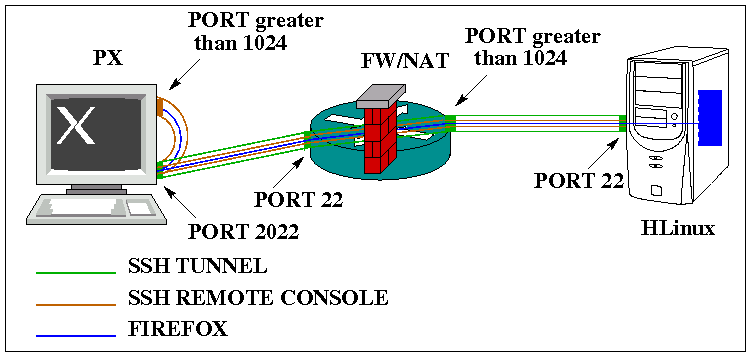
use in office the browser (firefox) of your HLinux box!
You could do all the work in 3 steps:
on PX box run the following command from a shell:
#> ssh -C -L 2022:HLinux:22 user_FW@FW "echo -n Welcome at\ ; date ; sleep 3600 ; echo -n Bye at\ \ \ \ \ ; date"type the required password for user_FW (NB: you can use the RSA certificate exchange if you prefer) and the tunnel is on.
open another shell and type the following command:
ssh -XC -p 2022 sweet_home@localhosttype the required password for sweet_home (NB: you can use the RSA certificate exchange if you prefer) and you are on HLinux in remote console.
#> echo $DISPLAY
localhost:10.0
the means that X11 display is forwarded back to your cygwinX server through SSH channel.